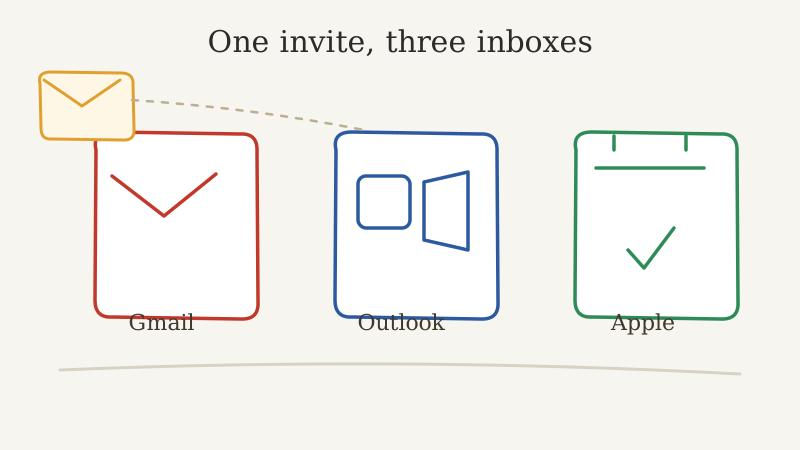
You send one calendar invite. Your prospect list, though, is not one inbox. Some people open it in Gmail, some in Outlook, some on an iPhone that routes everything through Apple Calendar. The invite you carefully wrote lands in all three, but it does not look or behave the same in any of them.
That gap matters more than most sales teams realize. A cold calendar invite lives or dies on the first two seconds of attention: does it appear on the calendar, does the title read clearly, does the accept button sit where the prospect expects it. Each major calendar client answers those questions in its own way. If you only ever preview your invites in one client, you are blind to how a big slice of your list actually experiences them.
This guide walks through how Gmail, Outlook, and Apple Calendar each handle an incoming invite from a sender the recipient has never met, where each one can trip you up, and how to send invites that render cleanly across all three.
Why the client matters at all
A calendar invite is not a normal email. It is an email that carries a structured attachment (an .ics file following the iCalendar standard) describing an event: a title, a time, a location, an organizer, and a list of attendees. When that message arrives, the receiving system has a choice. It can treat the message as plain mail and drop it in the inbox, or it can recognize the event data and surface it as a calendar item with accept and decline controls.
Which path it takes depends on the client, the account settings, and how well formed your invite is. This is the root of all the differences below. The same .ics file can become a tidy one click accept card in one client and a confusing raw attachment in another.
Before your invite ever reaches a calendar, it still has to clear the same authentication checks as any sending domain. Invites sent from a domain with broken SPF, DKIM, or DMARC records get filtered before rendering ever becomes the question. Confirming your sending domain and your recipient list are both clean is step zero. Running your list through an email validation tool like Scrubby before a send removes the dead and risky addresses that would otherwise bounce your invites and drag down your sender reputation, which is the reputation every one of these three clients is silently scoring.
Gmail: quiet auto add, if the prospect lets it
Gmail is the most aggressive of the three at recognizing events. When an invite arrives, Gmail parses the .ics payload and, depending on the recipient’s settings, can add the event to their Google Calendar automatically, even before they have opened or accepted anything.
That behavior is controlled by a setting called “Add invitations to my calendar,” which by default is set to add invitations only “From senders I know.” For a cold prospect, you are usually not a known sender, so the event will typically appear in a lighter, tentative state rather than being fully booked. The prospect still sees a clean card inside the email with Yes, Maybe, and No buttons, and a matching entry shows up on their calendar grid at the proposed time.
What works in your favor:
- The invite renders as a rich, native card. The title, time, and your organizer name are all visible at a glance.
- The event lands on the calendar grid, so even an unopened invite creates a visual footprint on the prospect’s day.
- Accepting is a single tap that fires an RSVP back to you, giving you a clean acceptance signal.
Where Gmail bites you:
- Long or salesy titles get truncated hard on the calendar grid. Gmail shows only the first chunk of the title in a day or week view, so front load the value.
- If your organizer display name looks like a no reply system address, the card feels automated and trust drops.
- Promotions style filtering can still route the carrier email into a secondary tab, which suppresses the in email card even when the calendar entry exists.
The practical takeaway for Gmail: keep the event title short, specific, and human, and make sure the first four or five words carry the point.
Outlook: the strictest gatekeeper
Outlook, especially in a corporate Microsoft 365 tenant, is the client most likely to interfere with a cold invite. It is also where a large share of B2B buyers actually live, so you cannot ignore it.
Outlook does render invites as first class calendar items with Accept, Tentative, and Decline buttons, and when it works, it works beautifully. The event appears in the reading pane as a structured card and slots straight into the calendar. The complication is everything the tenant administrator sits in front of.
Corporate Outlook environments frequently run:
- Aggressive external sender filtering that stamps a visible “This sender is external” banner on your invite, which immediately flags you as an outsider.
- Safe sender and quarantine policies that can hold a message from an unknown domain before it ever reaches the inbox.
- Auto processing rules that mark external meeting requests as tentative without notifying the user, so your invite is technically on the calendar but the prospect never consciously saw it.
Outlook is also picky about malformed .ics files. If your invite’s time zone definition, organizer field, or unique event identifier is even slightly off spec, Outlook may fail to render the accept controls and instead show a raw attachment or an error. Sloppy invites that Gmail forgives, Outlook punishes.
To send well into Outlook: make sure your invite is strictly valid iCalendar, keep the sending domain warm and authenticated, and write a subject and body that survive an external sender banner sitting on top of them. Assume the prospect will see the “external” label first and design the rest of the message to earn attention despite it.
Apple Calendar: clean rendering, mobile first behavior
Apple Calendar covers every prospect who reads mail in the iOS Mail app or macOS Mail with an iCloud or configured account. Its defining trait is that it is overwhelmingly a mobile experience, and mobile changes how your invite gets consumed.
When an invite reaches Apple Mail, it detects the event and shows a compact banner at the top of the message with the event details and quick RSVP actions. Tap into it and Apple Calendar renders a clean, well spaced event view. Apple is generally faithful to the .ics content and rarely mangles a well formed invite, which makes it the most predictable of the three for pure rendering.
The behavioral differences are what to watch:
- Everything is thumb sized. On a phone, only the first line of your title and a sliver of the description are visible without tapping through. Brevity is not optional here, it is the whole game.
- Apple’s default is to show the invite banner rather than silently auto add the event, so the prospect has to make an active choice. That is good for signal quality but means a weak title gets dismissed fast.
- Notifications and time zone handling are tightly tied to the device’s own settings, so an invite with a vague or missing time zone can display at the wrong local time and read as careless.
For Apple Calendar, treat the invite as a mobile notification first and a calendar event second. If the value does not land in the first line on a small screen, it does not land at all.
What this means for how you send
Three clients, three sets of rules, one list. You cannot control which client each prospect uses, so the only winning move is to send invites that behave well in all of them at once. A few habits get you most of the way there:
- Write titles for the smallest screen. Assume the prospect sees only the first four or five words on a phone. Lead with the specific value, never with your company name or a generic “Intro call.”
- Send strictly valid iCalendar. A clean
.icswith a proper time zone, a stable unique identifier, and a real organizer name renders correctly in Outlook and Apple, not just in the forgiving Gmail path. This is exactly the kind of standards compliant invite generation that a purpose built platform like Kali handles for you, instead of hand rolling.icsfiles that Outlook silently rejects. - Authenticate your domain. SPF, DKIM, and DMARC are the price of entry. Without them, corporate Outlook and Gmail both downgrade you before rendering is even considered.
- Protect your sender reputation. Every bounce from a bad address erodes the reputation all three clients score you on. Cleaning your list with Scrubby before each send keeps invalid addresses out of the send and keeps your invites landing where prospects will see them.
- Preview in more than one client. Send a test invite to a Gmail account, an Outlook account, and an iPhone before you scale a campaign. What looks perfect in one can be broken in another.
Cold calendar invites already outperform cold email on visibility because they occupy the prospect’s calendar instead of competing in a crowded inbox. But that advantage only holds if the invite renders cleanly wherever it lands. Gmail will mostly reward you, Outlook will test you, and Apple Calendar will punish anything that is not short and mobile ready. Design for all three from the start, and a single well built invite will do its job no matter which inbox opens it.